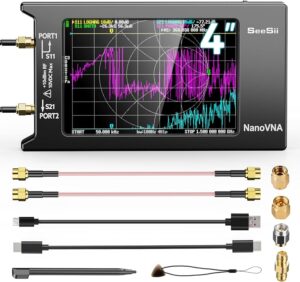
A NanoVNA is one of the most useful test instruments you can have in an amateur radio shack. One of its simplest—and most useful—jobs is measuring the SWR of an antenna across an entire frequency range.
Unlike a traditional SWR meter, which normally gives you a reading at the frequency you’re transmitting on, a NanoVNA can sweep across a whole amateur radio band and show exactly where your antenna has its lowest SWR.
In this guide, I’ll show you how to measure SWR with a NanoVNA, find the resonant point of an antenna, view return loss, and save calibrations for frequency ranges you regularly use.
I’m using a NanoVNA SAA-2N, but the basic process is much the same on other NanoVNA models. Menu names may vary slightly depending on your model and firmware.
What You’ll Need
- A NanoVNA
- Open, Short and 50-ohm Load calibration standards (usually provided with NanoVNA)
- Your antenna or antenna system
- Any adapters or coax jumpers required to connect it
- A stylus can also make using the NanoVNA touchscreen much easier
For an SWR measurement we’ll be using the NanoVNA’s S11 or reflection port, normally labelled CH0 or Port 1.
What Does the NanoVNA Measure?
When testing an antenna, the NanoVNA sends a signal into the antenna system and measures how much of that signal is reflected back.
This is an S11 reflection measurement.
From that measurement the NanoVNA can display several useful values, including SWR and return loss.
For this test we’re going to display both.
SWR gives us the familiar ratio such as 1.2:1, 1.5:1 or 2:1.
Return loss expresses the reflected signal in decibels. A higher return-loss figure represents a better match. For example, an S11 LogMag reading of approximately -21 dB corresponds to about 21 dB of return loss.
You don’t need to understand all of the maths behind S-parameters to perform a useful antenna test. The important thing is that SWR and return loss are both derived from the same reflected signal measurement.
Step 1: Configure the NanoVNA Traces
NanoVNAs can display multiple traces simultaneously, but for a simple antenna test we don’t need all of them.
Tap the screen and open:
Display → Trace
Disable any traces you don’t need.

For my setup I use two traces:
Trace 0 — Return Loss
Select Trace 0 and make sure the channel is set to S11 / Reflect.
Set its format to LogMag.
This shows the magnitude of the reflected signal in dB.
Trace 1 — SWR
Select Trace 1.
Again, set the channel to S11 / Reflect.
This time go into the Format menu and select SWR.
You should now have one trace showing S11 LogMag and another showing SWR.
For a basic antenna measurement you could also simply display the SWR trace and leave the other traces disabled.
Step 2: Set Your Frequency Range
Before calibrating the NanoVNA, set the frequency range you want to measure.
This is important because the calibration applies to the frequency span being measured.
For example, if I want to examine the lower section of the amateur 10-metre band, I can set:
Start: 28 MHz
Stop: 29 MHz
Go to:
Stimulus → Start
and enter 28 MHz.
Then select:
Stimulus → Stop
and enter 29 MHz.
The bottom of the NanoVNA display should now show the start and stop frequencies of the sweep.
A narrower frequency span will usually make it much easier to see exactly what’s happening around the part of the band you’re interested in.
You can always perform a wider sweep first if you don’t know approximately where the antenna is resonant.
Step 3: Calibrate the NanoVNA

Calibration is one of the most important parts of getting useful measurements from a NanoVNA.
For an SWR measurement we’re only making an S11 reflection measurement, so we need to calibrate the reflection port using:
Open, Short and Load.
We don’t need a Through calibration because we’re not performing an S21 transmission measurement between both NanoVNA ports.
Before calibration, attach any adapter or short test cable that will remain permanently between the NanoVNA and the device you’re testing. Ideally, the calibration standards should be connected at the same point where the antenna will eventually be connected. This sets the measurement reference plane at the end of that adapter or cable.
Open the calibration menu and reset any previous calibration:
Calibrate → Reset
Then return to:
Calibrate → Calibrate
Open
Connect the Open calibration standard to the S11/CH0 port.
Select Open on the NanoVNA.
Wait for the measurement to complete and for the NanoVNA to indicate that the calibration step has been accepted.
Remove the Open standard.
Short
Connect the Short calibration standard.
Select Short.
Wait for the calibration to complete, then remove it.
Load
Finally, connect the 50-ohm Load calibration standard.
Select Load and allow the measurement to complete.
Once Open, Short and Load have been completed, select Done.
Your NanoVNA is now calibrated for the frequency range you’re testing.
Step 4: Save Your Calibration
If you regularly measure the same amateur radio bands, saving calibrations can save quite a bit of time.
After completing the calibration, select one of the available save slots.
For example, I keep saved calibration states for frequency ranges including:
10 metres, 6 metres, 2 metres and 70 centimetres.
When I want to return to one of those measurements later, I can recall the appropriate calibration rather than starting from scratch.
The important part is that the saved calibration needs to match the measurement setup and frequency range you’re using. If you substantially change the frequency span, adapters, cables or measurement reference plane, recalibrate before relying on the measurement.
Step 5: Connect the Antenna
Once calibration is finished, remove the calibration standard and connect the antenna or feedline to the calibrated S11 port.
The NanoVNA will immediately begin sweeping across the selected frequency range.
You should now see the SWR trace move up and down across the screen.
What we’re particularly interested in is the dip in the SWR trace.
This represents the frequency where the antenna system has its lowest SWR within the range we’re measuring.
Step 6: Find the Lowest SWR
You can move a marker across the trace using the controls on the NanoVNA, drag it using the touchscreen, or use the marker search function.
Open:
Marker → Search → Minimum
The NanoVNA will position the marker at the minimum point in the selected trace.
On my DX Commander antenna, for example, I measured the minimum at approximately:
28.125 MHz
with an SWR of approximately:
1.18:1
The S11 LogMag measurement was around -21 dB, equivalent to roughly 21 dB return loss.

That’s a very good match.
More importantly, the marker tells me exactly where the minimum occurs.
If I’m tuning an antenna for a particular part of the band, I can now make a physical adjustment to the antenna, run another sweep and see whether the minimum has moved in the desired direction.
Understanding the SWR Graph
Don’t concentrate only on achieving the lowest possible number.
The shape and position of the entire SWR curve is often more useful.
For example, you may see a very low SWR at one particular frequency but a rapid rise towards either side. Another antenna may have a slightly higher minimum SWR but remain acceptably matched across a much wider part of the band.
For most amateur radio applications, an SWR around 1.5:1 or lower is generally a very comfortable result. An SWR below 2:1 is also usable with many modern transceivers, although the limits will depend on the equipment you’re using.
The NanoVNA lets you see that behaviour across the entire band rather than checking individual frequencies one at a time.
Finding Antenna Resonance Over a Wider Frequency Range
You don’t have to restrict the NanoVNA to a single amateur band.
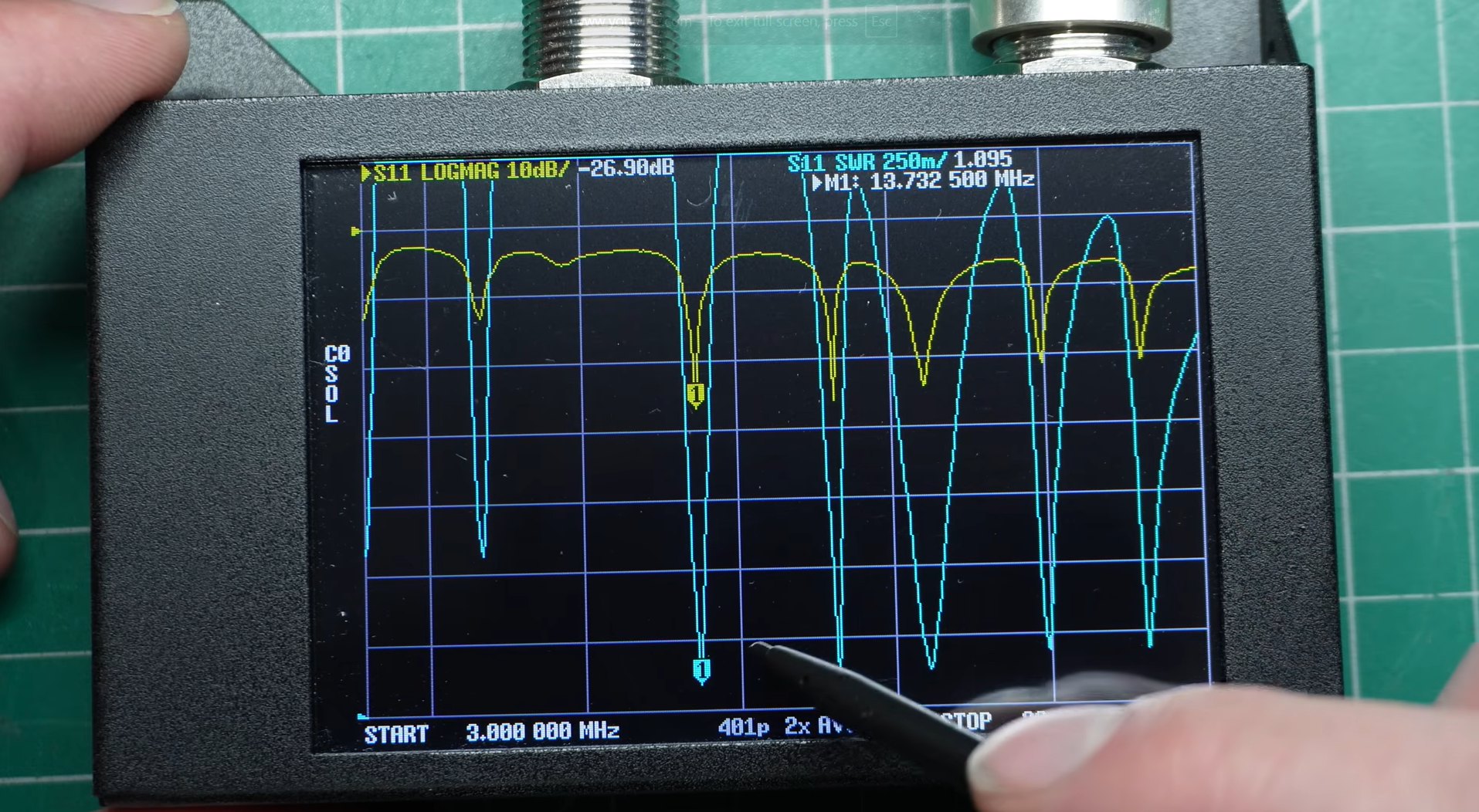
For example, I can sweep my multiband antenna from:
3 MHz to 30 MHz
and immediately see several dips across the display.
Those dips show the areas where the antenna system is better matched.
I can then move the marker to each dip and check its exact frequency.
On a multiband antenna this is a quick way of seeing how the antenna behaves across several HF bands at once.
Once you’ve identified the area you’re interested in, narrow the sweep to that individual band, calibrate for that frequency range, and take a more detailed measurement.
Using the NanoVNA to Tune an Antenna
This is where a NanoVNA becomes particularly useful.
Suppose you’re building or adjusting an antenna and want its lowest SWR around a particular frequency.
Perform a sweep and find the SWR minimum.
If that minimum is substantially below your desired frequency, the radiating element will commonly need to be shortened.
If the minimum is above your desired frequency, the element will commonly need to be lengthened.
Make small adjustments, sweep the antenna again and watch where the dip moves.
There are exceptions because antenna matching systems, traps, loading coils, feedlines and multiband designs can make things more complicated, but for a simple adjustable antenna this provides a very useful starting point.
Always make your final measurements with the antenna installed as close as possible to its normal operating position. Nearby objects, mounting hardware, the ground and even your body can affect an antenna’s impedance.
SWR vs Return Loss
SWR and return loss are two ways of looking at the same basic problem: how well the antenna system is matched to the transmission line.
A perfect 1:1 SWR would mean no power was being reflected back towards the source.
As the mismatch increases, the SWR rises and return loss decreases.
For practical amateur radio use, you don’t necessarily need to display both. SWR is often easier to understand when tuning an antenna.
Return loss can be useful when you’re doing more detailed RF measurements or comparing antenna performance.
One detail that’s easy to confuse is the NanoVNA’s S11 LogMag reading with return loss.
If the NanoVNA displays an S11 LogMag value of -21 dB, the corresponding return loss is normally stated as 21 dB.
So when looking at LogMag, a deeper negative dip indicates less reflected energy and therefore a better match.
Recalling Saved NanoVNA Calibrations
One feature I use regularly is the ability to store calibrations for common frequency ranges.
For example, if I’ve already created and saved an appropriate calibration for 50–54 MHz, I can load that calibration when I want to check an antenna on the 6-metre band.
This makes it much quicker to move between common measurements.
Just remember that a calibration isn’t universally valid forever.
If you’ve changed the frequency span, changed the adapter or test cable, or altered the point at which the calibration was performed, it’s better to recalibrate.
For repeatable measurements, consistency in your test setup matters.
Why a NanoVNA Is So Useful for Antenna Testing
You can certainly check an antenna using a conventional SWR meter, but the NanoVNA provides much more information at once.
Instead of transmitting on one frequency, checking the SWR, moving frequency and checking it again, you can see the behaviour of the antenna across an entire band in a single sweep.
You can immediately identify the lowest SWR, see the usable bandwidth of an antenna and watch the resonance move as you make adjustments.
And SWR testing is only one thing a NanoVNA can do.
You can also use it to test coaxial cable, measure cable length, investigate common-mode chokes, measure filters and perform many other useful RF measurements.
If you’ve bought a NanoVNA and have only been using it as an SWR meter, there’s quite a bit more you can do with it.